


Product Guides & Tutorials
All Quiet Masterclass: Building Holiday Rules with Routing Rules
🎄 Managing incidents during holidays shouldn't mean waking up your team unnecessarily. Learn how to automatically handle holiday periods so your team can actually take time off.

By Peer Rahne · Co-Founder & CEO at All Quiet

Reviewed by Maximilian Beller · Co-Founder & CTO at All Quiet
Updated: Tuesday, January 6, 2026
Published: Tuesday, January 6, 2026
TL;DR
With All Quiet's routing rules, you can automatically handle holiday periods so your team can actually take time off, and integrating resilient, automated on-call management software prevents infrastructure fatigue from holiday paging policies that never quite match real coverage needs.
🔹 Problem: Incidents during holidays still escalate and wake up on-call engineers
🔹 Solution: Use routing rules with date restrictions and snooze actions to automatically handle holidays
🔹 Result: Your team gets uninterrupted time off, and critical incidents are still handled appropriately
In this article, we'll walk through setting up holiday rules step by step, so you can protect your team's time off without compromising incident response.
The Problem - Holidays Should Mean Actual Time Off
If you've ever been on-call during a holiday, you know the frustration. You're trying to spend time with family or just decompress, but alerts keep coming through. Maybe they're minor issues that could wait. Maybe they're false positives from monitoring systems that are less reliable during low-traffic periods. Either way, your holiday is interrupted.
The reality is that many incidents during holidays don't need immediate attention. Your team deserves actual time off, not just "time off with a pager nearby." But you also can't just ignore everything. Some incidents are genuinely critical and need attention regardless of the calendar.
That's where routing rules come in. By combining date restrictions with smart snooze actions, you can automatically handle holiday periods while still ensuring critical incidents get the attention they need.
The Solution - Build Holiday Rules with Routing Rules
The best way to understand how this works is through a practical example. We'll walk through setting up a holiday rule for Christmas that automatically snoozes non-critical incidents while keeping critical ones active. If you have questions along the way, just shoot me a message.
Step 1 - Understand Your Team's Holiday Needs
Before we dive into the technical setup, let's think about what you actually need:
- Which holidays or periods do you want to cover? Christmas week? New Year's? Summer holidays?
- Should all incidents be snoozed, or only certain severities?
- How long should incidents be snoozed? Until the holiday ends? Until the next business day?
- Do you need different rules for different holidays?
For our example, we'll create a rule that snoozes Minor and Warning incidents during the Christmas period (December 24 to December 27), but keeps Critical incidents active. This gives the team peace of mind while ensuring truly urgent issues still get attention.
Step 2 - Navigate to Advanced Routing
To create your holiday rule, start by navigating to the Advanced Routing section in your All Quiet web app. This is where you'll configure all your routing rules, including holiday-specific ones.
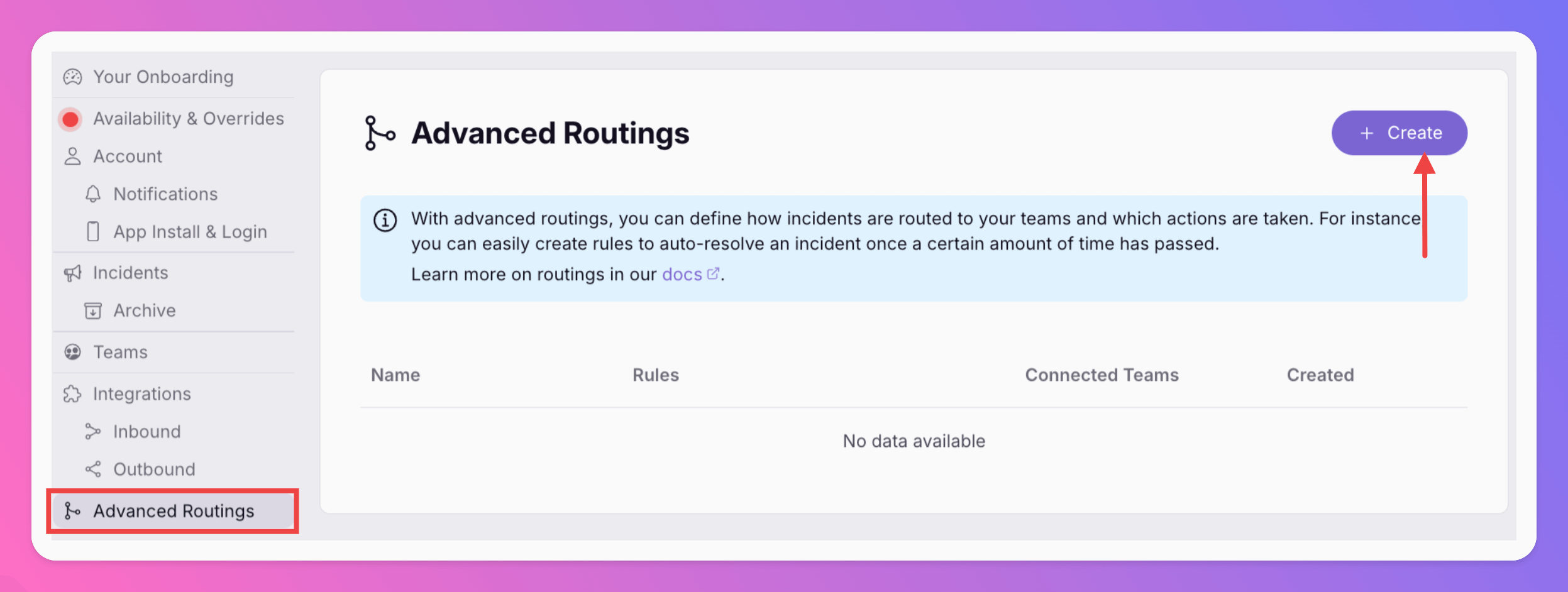
If you already have routing rules set up, you'll see them listed here. We recommend adding holiday rules to your existing list so all rules execute in the correct order. For holiday rules, you typically want them to run early in the sequence, before other routing logic.
Step 3 - Create a New Routing Rule
Click "New Routing" or "Add Rule" to create a new routing rule. Give it a clear, descriptive name like "Holiday Rule - Christmas" so you can easily identify it later.
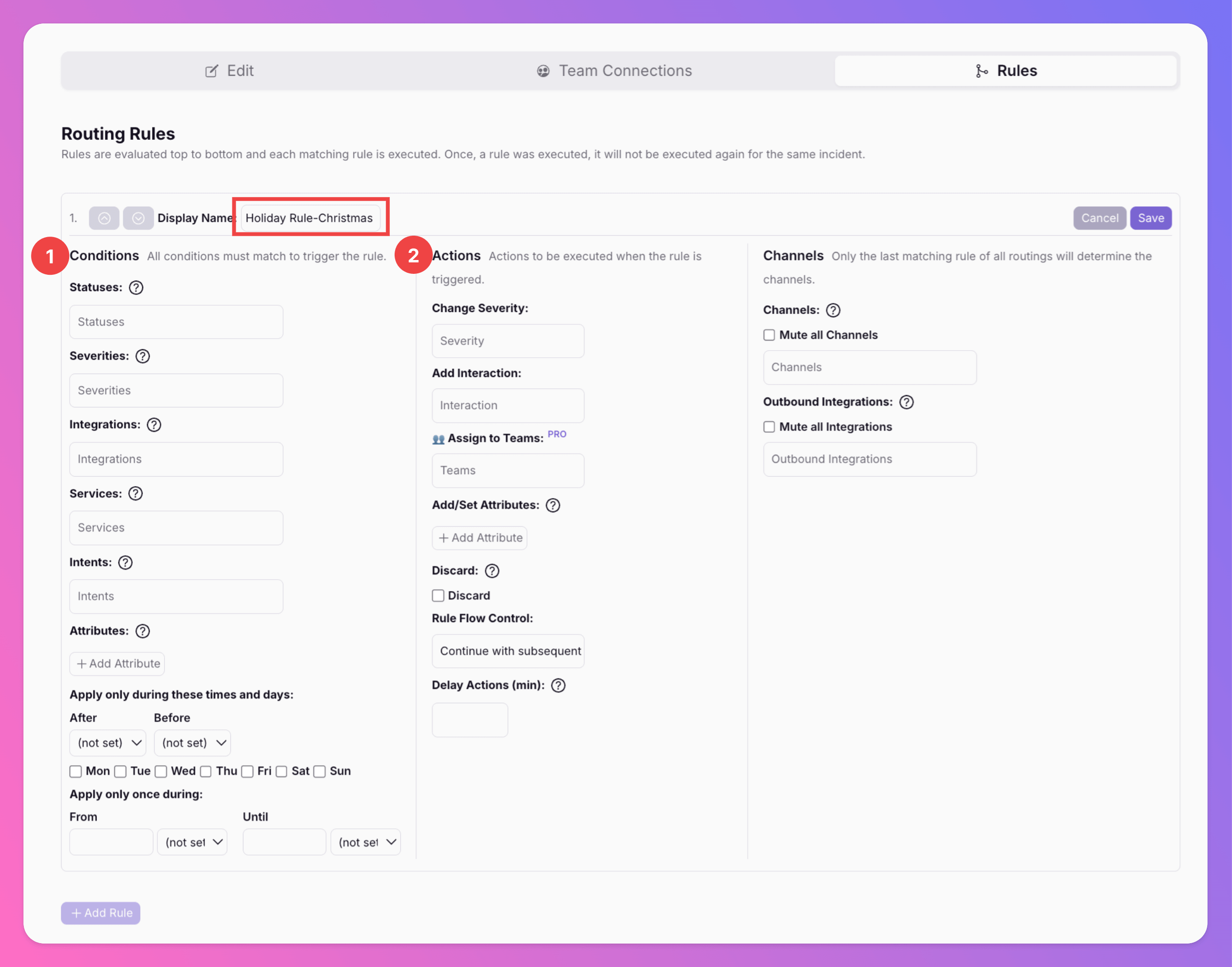
Once you've named your rule, you'll see the rule editor with sections for Conditions (1) and Actions (2). This is where the magic happens.
Step 4 - Set Up Date Restrictions
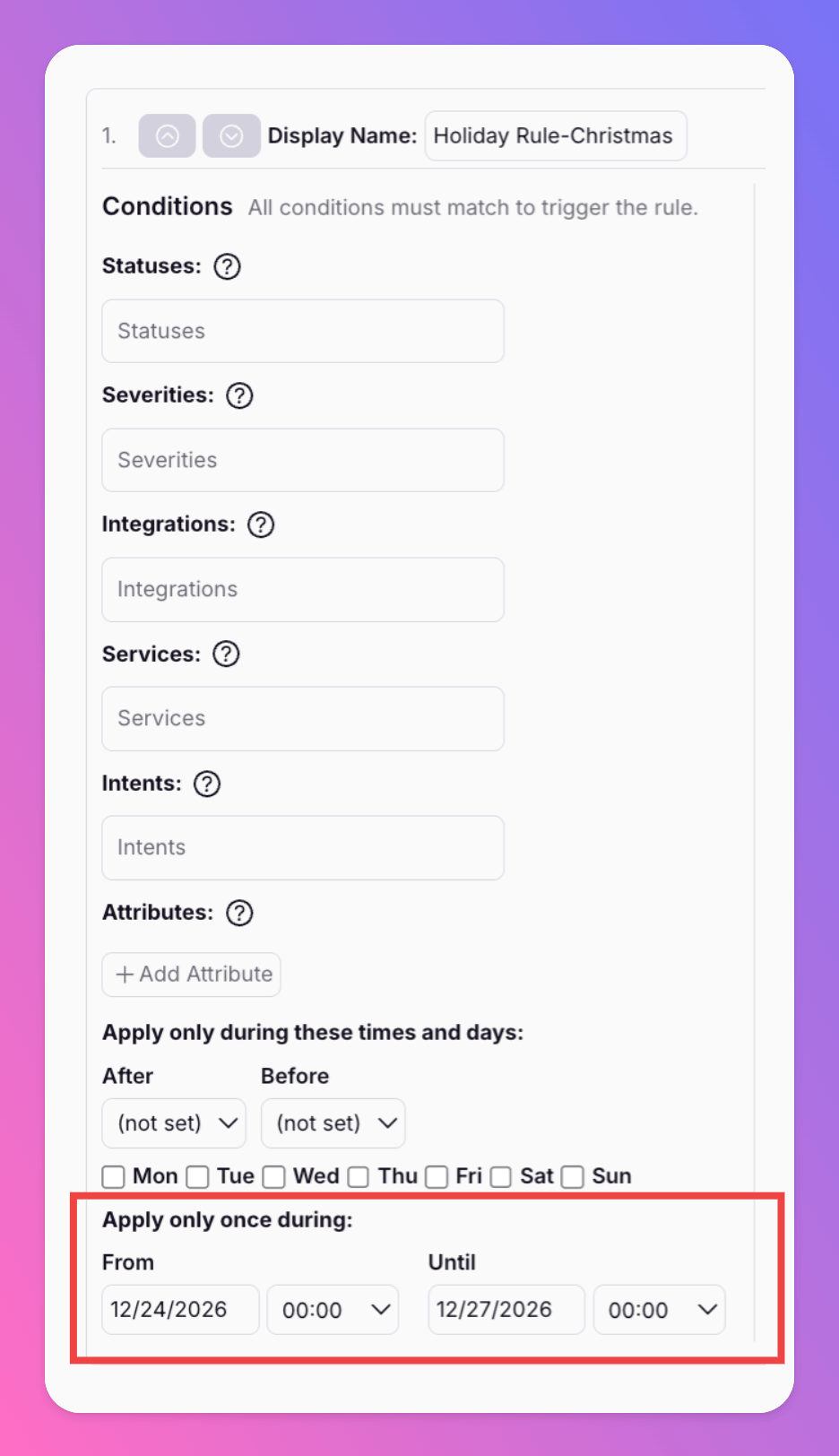
The first thing we need to configure is when this rule should be active. This is where date restrictions come in. In the Conditions section, you'll find a date Restriction option ("Apply only once during").
For our Christmas example:
- Set the "From" date to December 24 at 00:00 (midnight)
- Set the "Until" date to December 27 at 00:00 (midnight)
This ensures the rule only applies during the specific holiday period you want to cover.
Step 5 - Filter by Severity
Now we need to specify which incidents should be affected by this rule. In the Conditions section, find the "Severities" field. For our example, we want to snooze Minor and Warning incidents, but keep Critical ones active.
Select "Minor" and "Warning" from the severity options. This means the rule will only apply to incidents with these severities during the holiday period.

Critical incidents will bypass this rule entirely, ensuring they still get immediate attention even during holidays.
Step 6 - Configure the Snooze Action
Now comes the key part: telling the rule what to do when it matches. In the Actions section, you'll find options for handling incidents. For holiday rules, we want to snooze incidents automatically.
In the "Add Interaction" field, select "Snoozed". This tells All Quiet to automatically snooze matching incidents.
Next, you need to decide how long incidents should be snoozed. You have two main options:
- Snooze for a relative duration: Snooze for a specific number of minutes (e.g., 1440 minutes = 24 hours)
- Snooze until an absolute time: Snooze until a specific time, optionally combined with a weekday
For holiday rules, using a weekday works best. Set "Snooze until" to 09:00 and Weekday to Monday. This ensures incidents are automatically unsnoozed on the next Monday at 09:00, which is when your team typically returns to work after holidays.
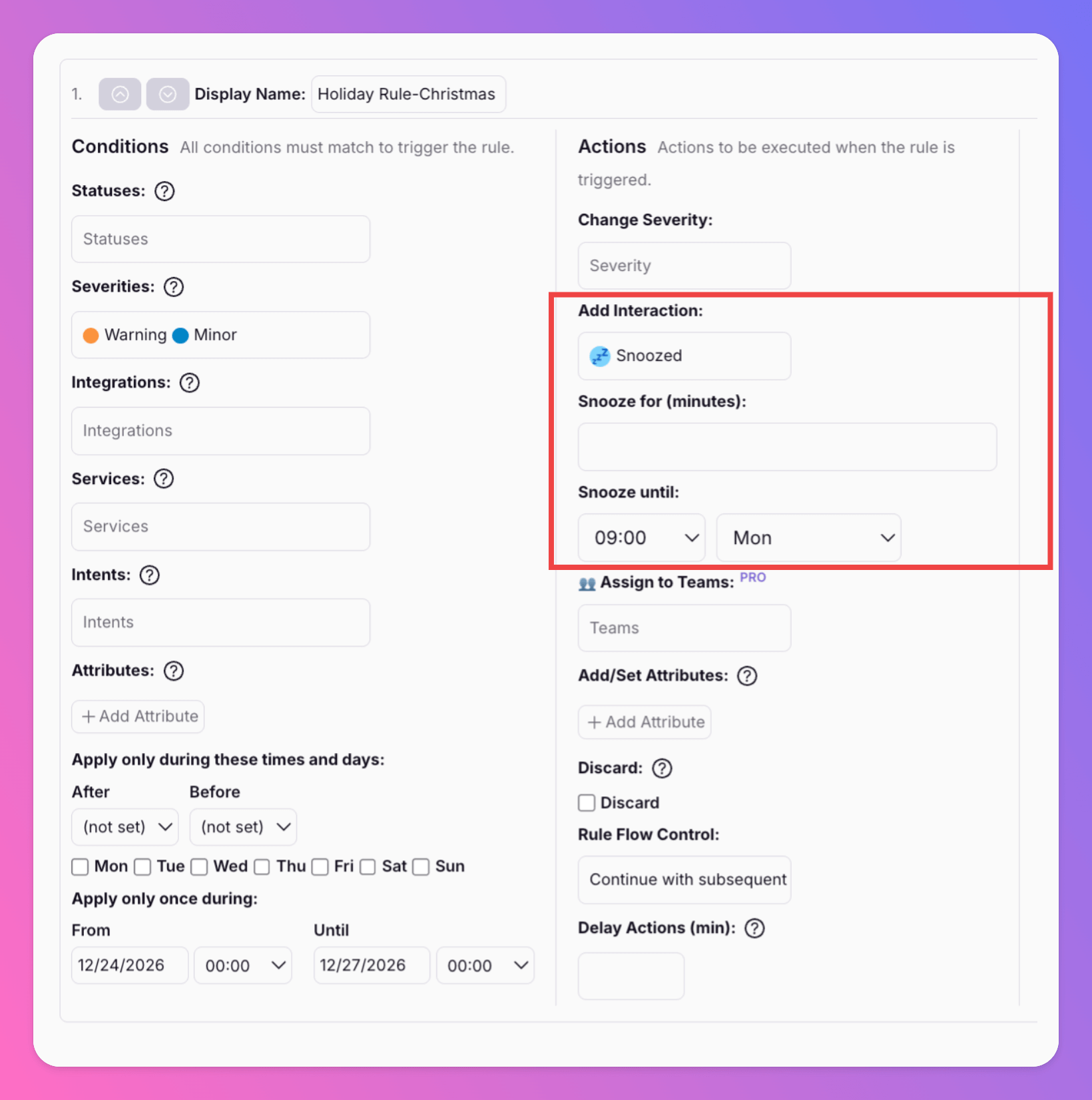
Now, incidents created during the holiday are automatically snoozed until your team is back and ready to handle them.
Step 7 - Set Rule Flow Control
One important consideration: should this rule stop other rules from executing, or should it continue processing subsequent rules? For holiday rules, you typically want to set "Rule Flow Control" to "Skip subsequent rules" so that once an incident is snoozed for the holiday, other routing logic doesn't interfere.
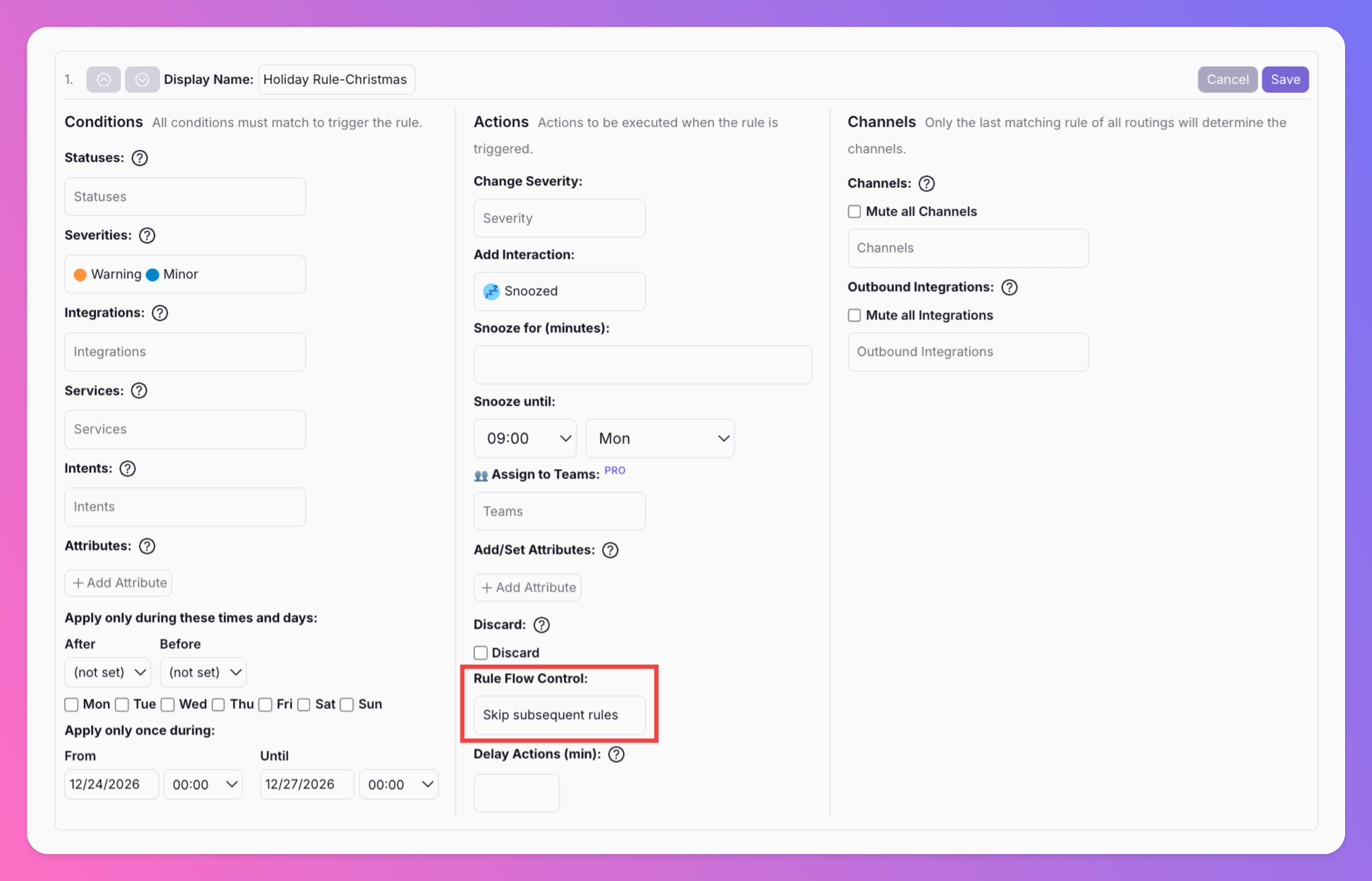
This prevents conflicts with other routing rules and ensures your holiday logic takes precedence during the specified period.
Step 8 - Save and Test Your Rule
Once you've configured all the conditions and actions, save your routing rule. The rule will be active immediately, but it will only apply during the date restriction period you specified.
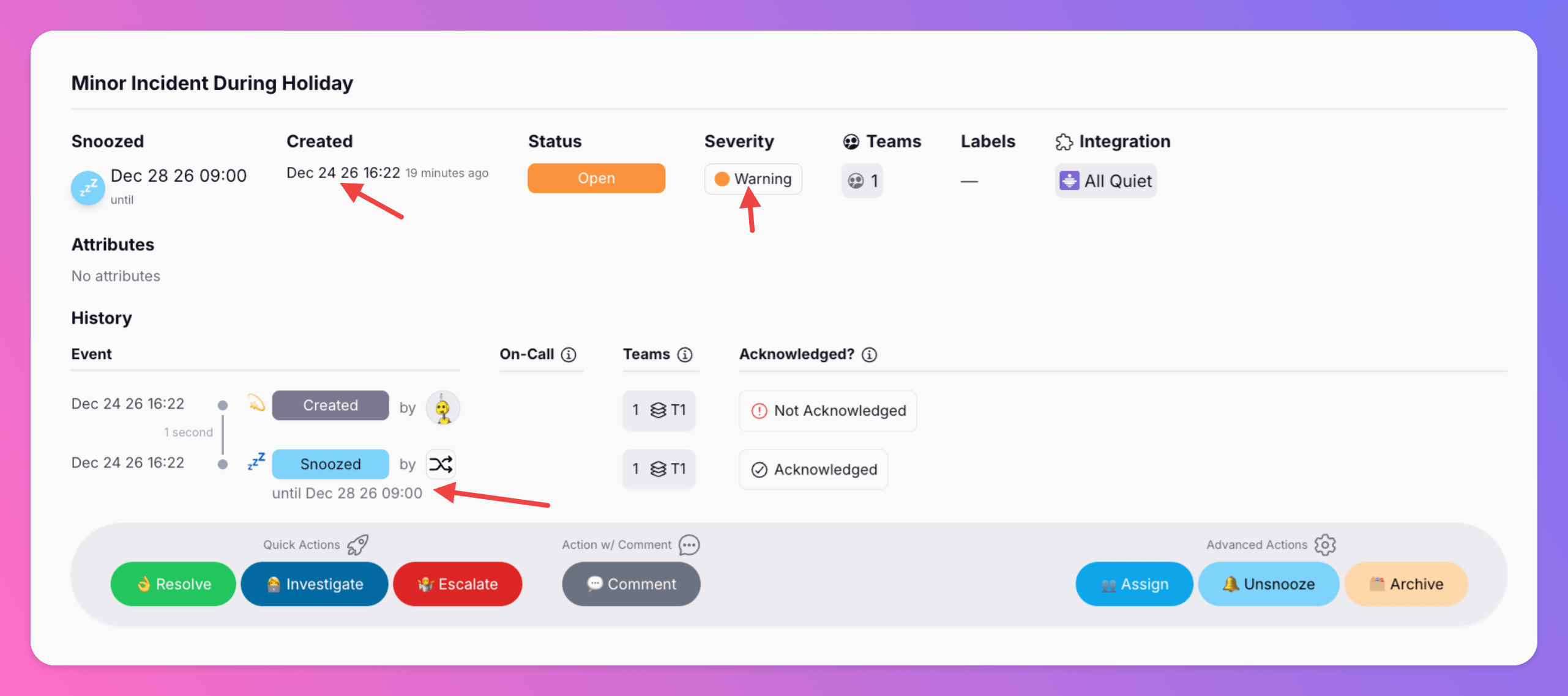
To verify it's working correctly, you can create a test incident during the holiday period (or temporarily adjust the date restriction to include today). Check that:
- Minor and Warning incidents are automatically snoozed
- Critical incidents bypass the rule and continue normal escalation
- Incidents are unsnoozed at the specified time after the holiday
Advanced Patterns - Multiple Holidays and Edge Cases
Once you've got the basics down, you can extend this pattern to handle more complex scenarios:
Multiple Holiday Periods
If you need to cover multiple holidays throughout the year, create separate routing rules for each period. For example:
- "Holiday Rule - Christmas" (December 24 - December 27)
- "Holiday Rule - Summer Break" (July 15 - August 15)
- "Holiday Rule - New Year's Day" (January 1)
Each rule can have its own date restrictions and snooze settings, giving you fine-grained control over different holiday periods. To save time, you can use the "Clone" button to create a new rule with the same settings as the existing rule. And then edit the rule to fit your needs.
Combining with Schedules
You can also combine date restrictions with schedule conditions. For example, if your team works different hours during holidays, you can add a schedule condition to only apply the rule during specific times of day.
In the Conditions section, you'll find a "Schedule" option where you can specify days of the week and time ranges. This is useful if you want holiday rules to behave differently on weekdays versus weekends during the holiday period.
Terraform Configuration
If you're managing your All Quiet configuration with Terraform, here's how the holiday rule looks in code:
  resource "allquiet_routing" "Holiday Routing Rules" {
  display_name = "Holiday Routing Rules"
  team_id = "Insert your team id here"
  rules = [
    {
      display_name = "Holiday Rule - Christmas"
      conditions = {
        severities = ["Warning", "Minor"]
        attributes_match_type = "all"
        date_restriction = {
          from = "2026-12-24T00:00:00Z"
          until = "2026-12-27T00:00:00Z"
        }
        schedule = {
        }
      }
      actions = {
        add_interaction = "Snoozed"
        rule_flow_control = "Skip"
        snooze_until_absolute = "09:00"
        snooze_until_weekday_absolute = "mon"
      }
      channels = {
      }
    }
  ]
}
Adjust the dates, severities, and snooze settings to match your team's needs. Remember to update the date restrictions annually for recurring holidays.
Final Thoughts
Holiday rules are one of those features that seem simple on the surface but can make a huge difference in your team's quality of life. When done right, they give your engineers actual time off without compromising your ability to respond to critical incidents.
The key is finding the right balance. You want to reduce noise and interruptions during holidays, but you also need to ensure that truly critical issues still get attention. By filtering by severity and using date restrictions, you can achieve both goals.
Take some time to think about your team's holiday patterns. Which periods cause the most interruptions? Which incidents can safely wait? Once you've identified those patterns, routing rules give you the tools to automate the solution.
Have questions about setting up holiday rules? Or maybe you've found creative ways to use routing rules for other time-based scenarios? I'd love to hear about it. Drop me a line anytime.
Peer
CEO & Co-Founder of All Quiet
Author
Co-Founder & CEO at All Quiet
Product leader focused on B2B SaaS platforms; writes about on-call experience, payload mapping, and how teams ship reliable incident workflows.
Reviewer
Co-Founder & CTO at All Quiet
Engineering leader building incident management systems focused on reliability, clear escalation, and sustainable on-call operations for production teams.
Recommended posts
-

Opsgenie Migration Nikolas Köppl
Migrating from Opsgenie to All Quiet: The Terraform (IaC) Transformation Guide - Part I
🔧 A technical guide for DevOps and SRE teams: Learn how to migrate from Opsgenie to All Quiet using Terraform, transforming legacy ticketing-heavy structures into modern, developer-first IaC workflows.
-

Security & Compliance Peer Rahne
The Foundation of Trust: Why Your On-Call Platform is the Heart of SOC 2 Security and Availability
🛡️ For modern SaaS and technology platforms, SOC 2 compliance is a gamechanger for building trust.
Read all blog posts and learn about what's happening at All Quiet.
Published