

New Outbound Integrations: Google Docs and Google Sheets
Forward All Quiet incidents directly to Google Workspace. This integration automates documentation for postmortems and historical records within your existing team workflow.
Published: Monday, 04 May 2026
Forward All Quiet incidents directly to Google Workspace. This integration automates documentation for postmortems and historical records within your existing team workflow.
Integration Overview
| Feature | Google Docs Integration | Google Sheets Integration |
|---|---|---|
| Primary Use | Automated incident write-ups and retrospectives. | Centralized reporting and incident filtering. |
| Storage | Specific Google Drive folders. | Specific Google Drive folders. |
| Trigger Options | Manual forward or automatic on creation. | Manual forward or automatic on creation. |
Key Benefits for Teams
- Documentation Speed: Generate structured documents for incidents instantly.
- Reporting: Sync data to Google Sheets to analyze response trends and MTTR.
- Visibility: Keep stakeholders informed using tools they already use.
Configuration Steps
Follow these steps to connect your organizations to Google Workspace:
- Select Integration: Navigate to Outbound Integrations and choose Google Docs or Google Sheets.
- Define Scope: Pick the specific teams that will use this integration.
- Authenticate: Connect your Google account securely.
- Set Triggers: Choose if All Quiet should forward incidents automatically upon creation or only when a user triggers a manual forward.
- Map Destination: Select the Drive folder where All Quiet should create new files.
Pro and Enterprise Tiers: Users can leverage team connections to attach these integrations to multiple teams simultaneously.
More updates
-
Terraform Provider: Version 3.0.0 - Flexible Notification Management
All Quiet Terraform Provider v3.0.0 is now available. This update introduces a breaking change to provide greater flexibility in how you manage users and their incident notification settings.
-
Export All Quiet Incidents as Markdown
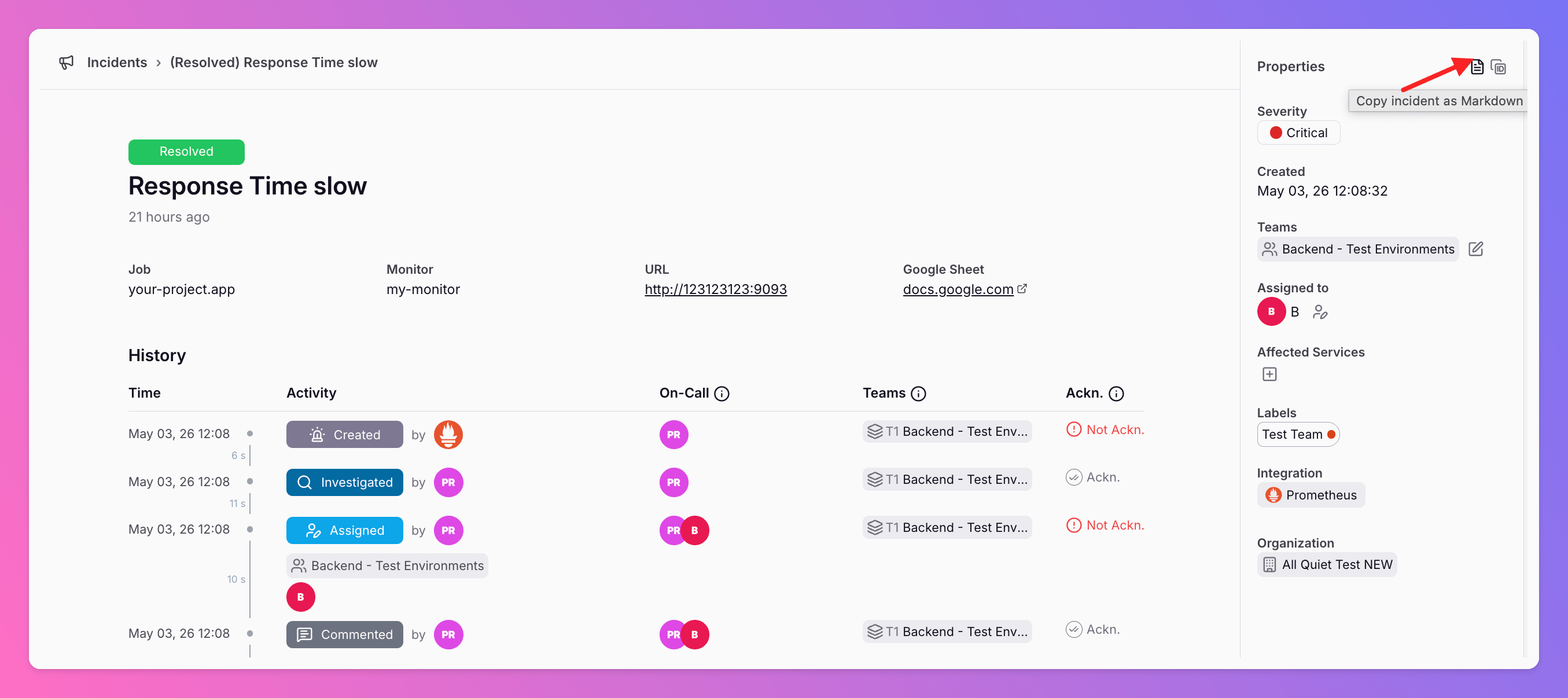
Copy full incident data and event timelines as Markdown from the All Quiet web app or Public API. This feature provides structured data for postmortems, internal tickets, and AI analysis.
Published