

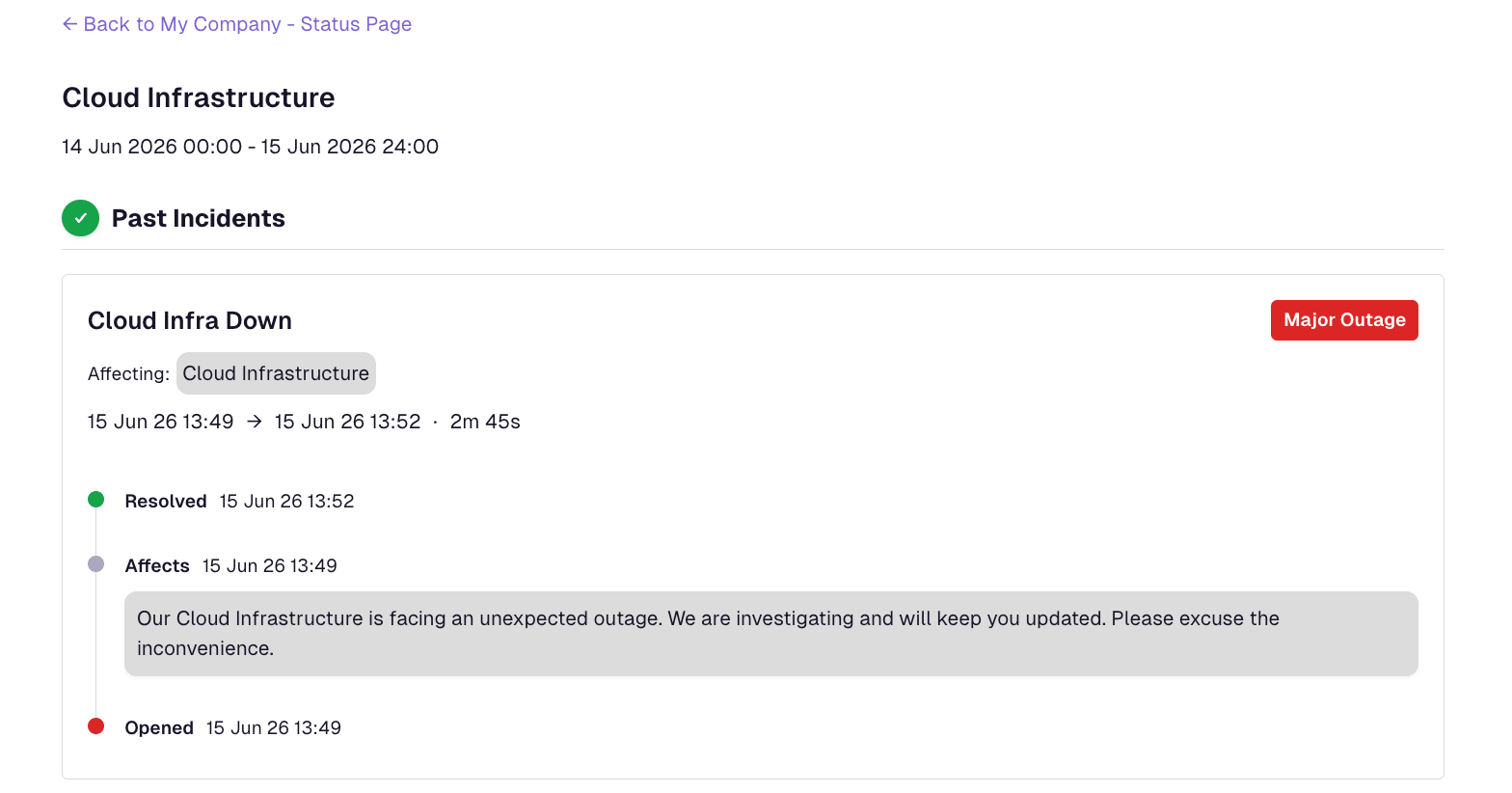
Status Pages: Public Incident History
Past incidents and past maintenances no longer appear on the main Status Page. Visitors now open incident history pages by clicking a time interval on a Service's status graph.
Published: Monday, 15 June 2026
We've updated how past incidents and past maintenances appear on your public Status Pages.
What changed
Past incidents and past maintenances are no longer listed on the main Status Page. They're now on incident history pages — one per time interval — that open when visitors click an interval on a Service's status graph.
What stays the same
- Ongoing incidents still appear on the main page above the affected Service's status graph.
- Upcoming and ongoing maintenances are unchanged.
- Status graphs, uptime, and current service status work as before.
Visibility settings
Nothing is shown unless your page allows it:
| Setting | Effect |
|---|---|
| Hide history, graphs, and uptime % on the public page | History graphs must be enabled (this setting must be off) for interval links and incident history pages to appear. |
| Hide incident details on the public page | Incident details appear only when this setting is off. |
| Hide maintenances on the public page | Maintenances on history pages appear only when this setting is off. |
If any of these are enabled, the related content stays hidden on both the main page and incident history pages.
How visitors find past activity
- Open the Status Page.
- Find the Service's status graph.
- Click the interval for the time period they care about.
- Review incidents (and overlapping maintenances) on the incident history page, with a link back to the main Status Page.
Learn more in our Status Pages documentation.
More updates
-
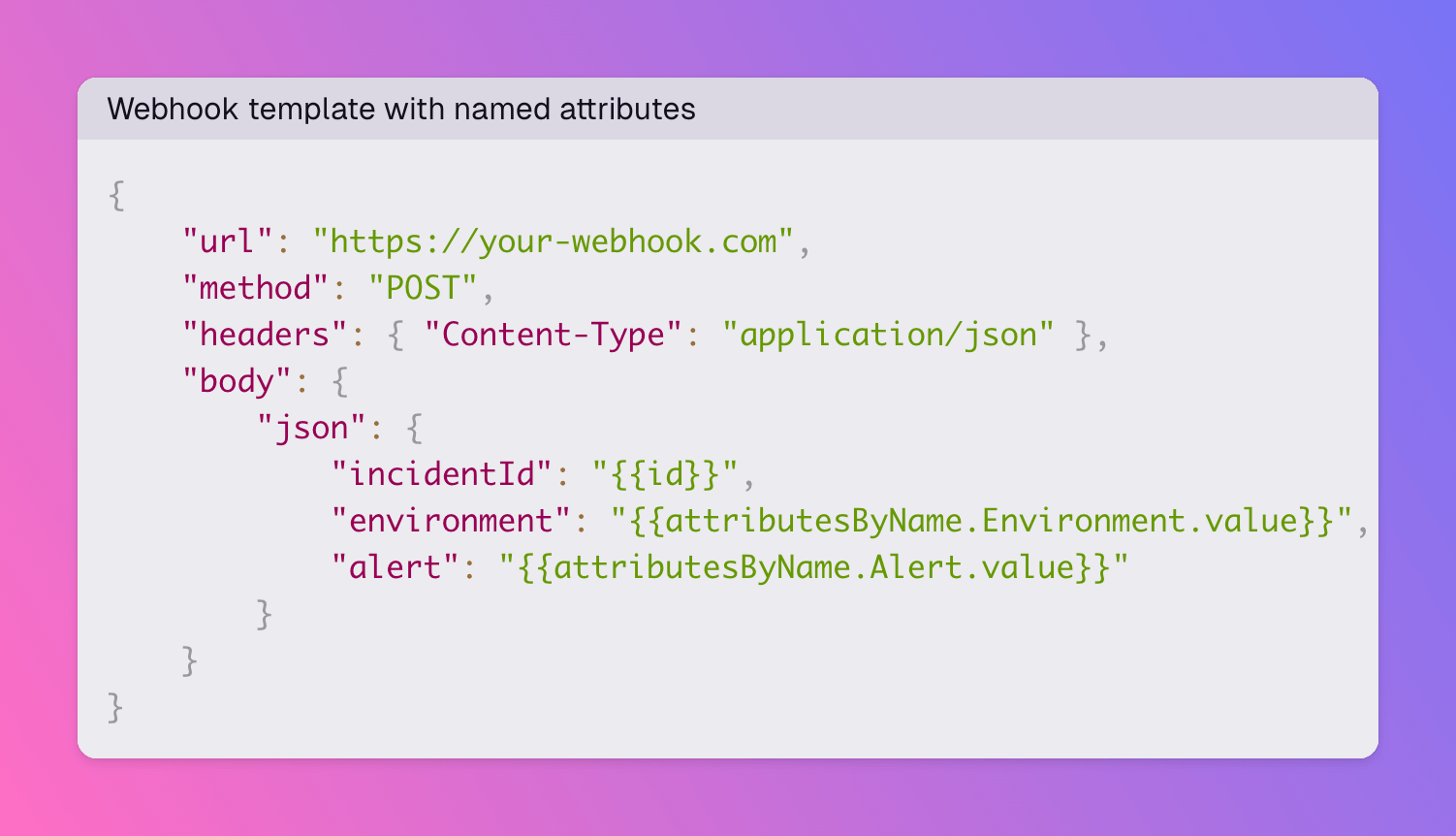
Outbound webhooks: look up incident attributes by name in templates
Outbound webhook Handlebars templates now expose attributesByName on the incident model. Reference a specific attribute by name instead of relying on its position in the attributes array.
-
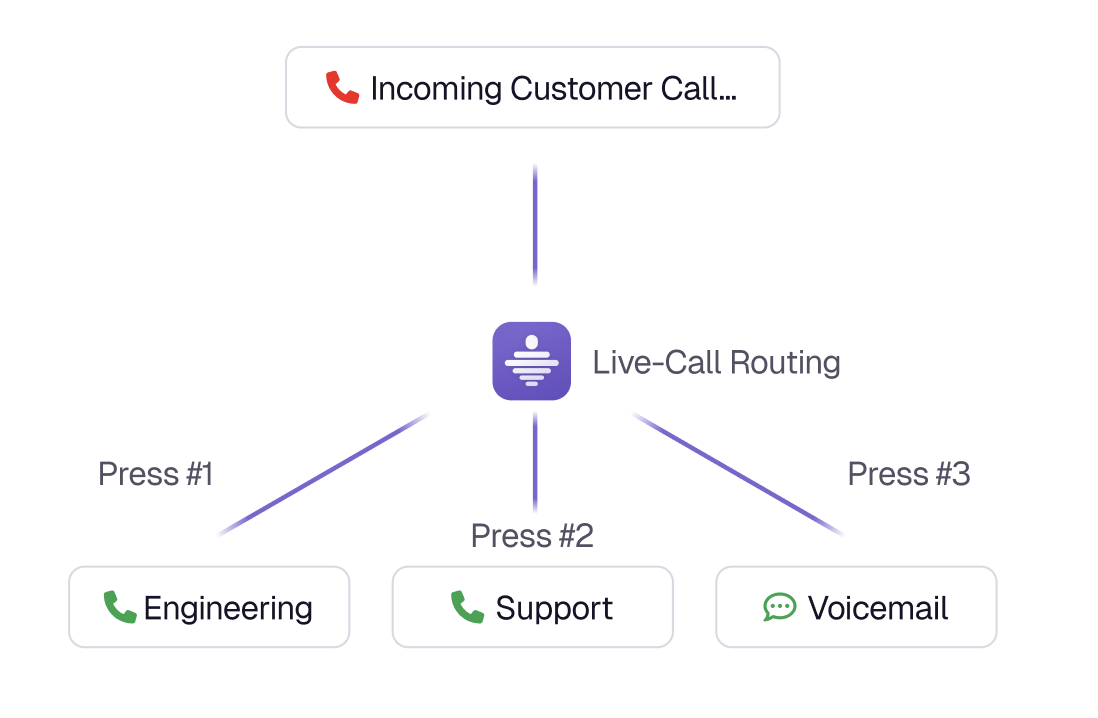
Live Call Routing with Twilio Integration
Route inbound hotline calls to your on-call team with zero telephony markup. Connect your Twilio number, configure IVR menus and escalation-aware dialing, and turn accepted calls and voicemails into incidents. Available in our Terraform provider from version 3.0.2.
Published